









Nimble X Claude Code CLI - Quick Start Guide


Tom Shaked
Nimble X Claude Code CLI - Quick Start Guide
Tom Shaked


Most popular articles



Get structured, reliable data for your stack.
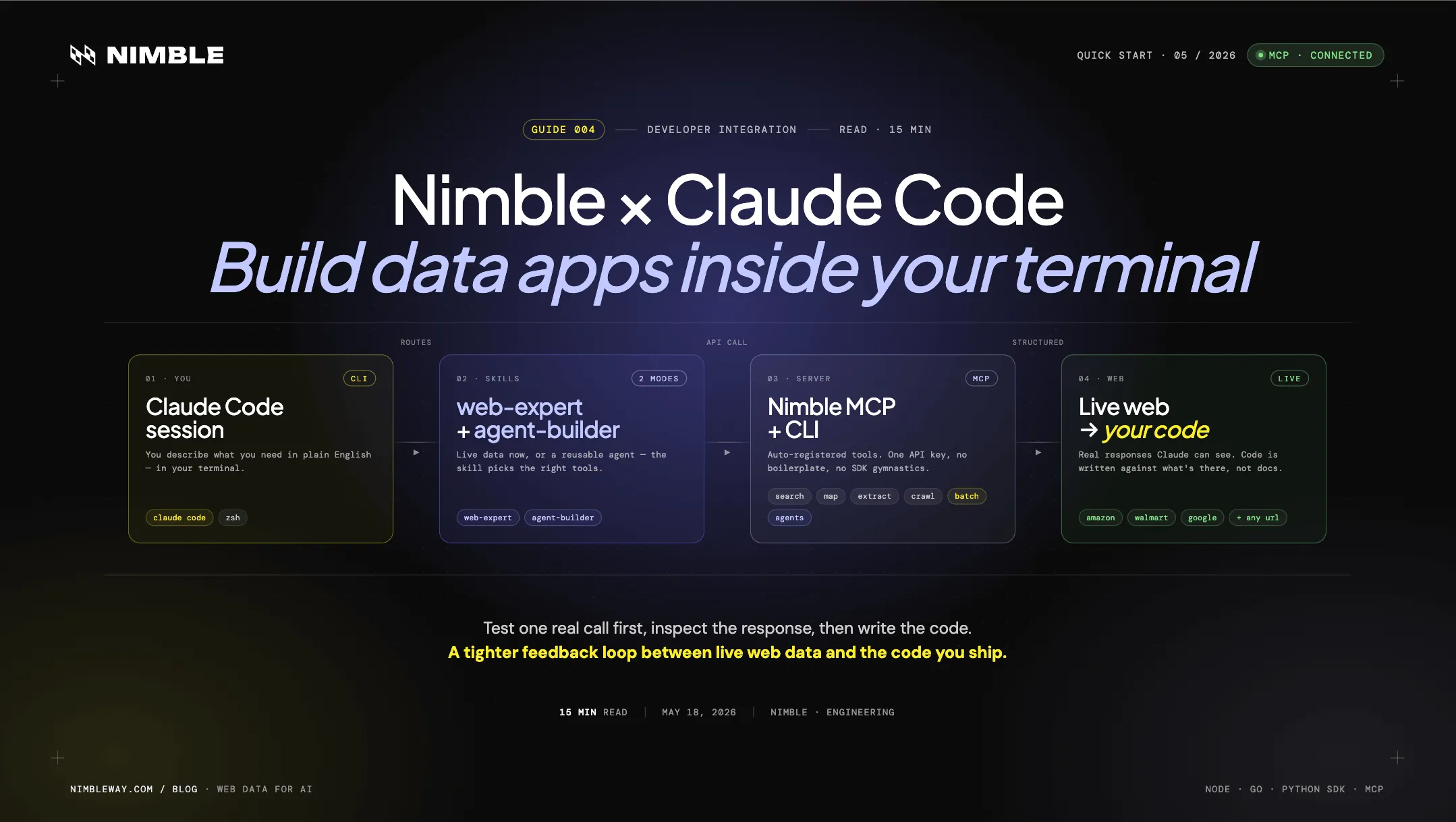
This guide is for developers who want to optimize and maximize the combined power of Nimble and Claude Code CLI. By the end of this guide, you’ll be able to build robust data apps and turn them into reusable scripts, agents, or pipelines.
We’re going to setup a working environment, a set of tested extraction patterns, and a local pipeline built in the best sequence.
Table of Contents
- How It Works
- Setup
- What Nimble Adds to Claude Code
- Demo 1 — Your First Search
- Demo 2 — Extract a Live Page
- Demo 3 — Run a Pre-built Agent
- Build Data Apps in the Right Order
- Demo 4 — Turn an Inline Test Into a Script
- Demo 5 — Map a Site, Then Extract Selectively
- Demo 6 — Build a Custom Agent
- Demo 7 — A Local Pipeline With Production-Minded Patterns
- Troubleshooting
- Continue Exploring
How It Works
Claude Code connects to Nimble through two layers: an MCP server (which gives Claude direct access to Nimble's APIs as callable tools) and a set of skills (which give Claude the behavioral context to use those tools well).
The key is that last step. Claude doesn't write code and hope it works. It sees the response first — the actual field names, the actual data shape, the actual driver behavior — and then writes the code.
The two modes:
Everything in this guide uses one of two skills:
| Mode | Skill | Use when |
|---|---|---|
| Immediate data | nimble-web-expert | You need live data now — search, extract, run an agent |
| Reusable workflows | nimble-agent-builder | You want to turn a repeated task into a published, reusable agent |
The demos map to these modes explicitly. nimble-web-expert powers Demos 1–5. nimble-agent-builder comes in at Demo 6 when you're ready to build something durable.
Setup
Prerequisites
- Claude Code — If you do not already have it installed, follow the setup instructions at claude.ai/code.
- A Nimble account — If you do not already have one, sign up for a free trial at online.nimbleway.com/signup.
Step 1 — Ask Claude Code to install Nimble
Open Claude Code and enter:
Install Nimble using https://nimbleway.com/auth.md
Claude Code will use Nimble’s auth.md file to identify the correct setup flow, install the required Nimble components, and guide you through authentication.
Step 2 — Authenticate with Nimble
Claude Code will prompt you to connect your Nimble account.
Follow the authentication flow in your browser. Once complete, Claude Code will receive the credentials it needs to use Nimble tools on your behalf.
✓ Checkpoint: Claude Code confirms that Nimble authentication completed successfully.
Step 3 — Restart Claude Code
Restart Claude Code so the Nimble MCP server and skills are loaded into your session.
After restarting, the Nimble integration will be available inside Claude Code.
Step 4 — Verify the installation
In a Claude Code session, ask:
What Nimble tools do you have access to?
Claude should list Nimble tools for search, extract, map, crawl, batch extraction, and agents.
✓ Checkpoint: Claude lists Nimble tools in its response.
A note on secrets
The auth.md setup flow is designed to avoid manual API key handling.
Do not paste Nimble API keys into project files, commit credentials to source control, or store secrets in shared repositories.
What Nimble Adds to Claude Code
The capabilities break into three groups. Each group maps to a different stage of a data project.
Explore
Search — Real-time web search with 8 focus modes: general, news, coding, academic, shopping, social, geo, and location. Ask Claude a question about the live web and it looks it up rather than relying on training data. Useful for research, trend spotting, and confirming that a target site or API exists before building against it.
Map — Discover every URL on a site or within a path before deciding what to extract. Run this before any crawl or batch job. It takes seconds and prevents over-fetching entire site trees when you only need a specific section.
Extract
Extract — Pull clean HTML or markdown from any URL. Use --parse --format markdown for LLM-readable output. Use --render for JavaScript-heavy pages (SPAs, dynamic listings). Use --country to get geo-specific results.
Crawl — Extract an entire site section in one request. Filter with --include-path to stay within a specific directory. Crawl can return a lot of content at once, which can be too large or noisy for an LLM context — map + targeted extract is usually preferable when you need clean, readable output.
Batch Extract — Up to 1,000 URLs in parallel, one API request, a batch_id returned immediately. No thread pool to manage, no retry logic to write. The right tool once you're past ~20 URLs.
Structure and Automate
Pre-built Agents — Structured data from known platforms without writing a parser. Amazon, Walmart, Target, Best Buy, Google Search, Google Maps, TikTok, YouTube, and more. One call returns a clean object with all the fields already parsed.
Agent Builder — When no pre-built agent exists for your target site, generate a custom one. Describe what you want to extract, Claude tests and refines the agent against real pages, then publishes it for reuse. More on this in Demo 6.
When to use what
| Goal | Use | Why |
|---|---|---|
| Answer a live web question | Search | Fast, token-efficient, structured results |
| Read one specific page | Extract | Clean output for any URL |
| Understand a site's structure | Map | Avoid fetching blindly |
| Pull many pages at once | Batch Extract | Parallel extraction, no loop to manage |
| Get structured data from Amazon, Walmart, Google, etc. | Pre-built Agent | No parser needed, fields already mapped |
| Build a scraper for a site with no pre-built agent | Agent Builder | Tested, published, reusable |
Demo 1 — Your First Search
Goal: Confirm the integration is live and see real-time results land in Claude's context.
Open Claude Code in any directory and type:
"Search for recent announcements from Anthropic"
Watch the Nimble tool call appear in the terminal output. A few seconds later, structured results appear in Claude's response.
You should see something like:
Your exact results will vary — this is a live search.
What to notice: These are current results, not training data. Claude can answer follow-up questions about them in the same session — "which of these is most relevant to enterprise customers?" works immediately because the content is already in context.
✓ Checkpoint: A Nimble tool call appears in the terminal output and structured results appear in Claude's response.
Demo 2 — Extract a Live Page
Goal: Pull content from a real URL and understand what "extract" returns.
Pick any article, blog post, or product page and ask:
"Extract the content from [URL] and summarize the key points"
Claude calls the extract endpoint with --parse --format markdown, which strips navigation, ads, and boilerplate and returns the readable content as clean markdown.
You should see something like:
What to notice: Claude is reading the actual page, not describing it from memory. Ask a specific question about the content and Claude answers directly from what it just read.
✓ Checkpoint: Markdown content from the target URL appears in Claude's response.
Demo 3 — Run a Pre-built Agent
Goal: See what "structured data" means versus raw extraction. Introduce --transform in context.
Ask:
"Get me the full product details for ASIN B0DLKFK6LR"
Claude runs the amazon_pdp agent and returns a fully parsed product object.
You should see something like:
What to notice: The pre-built Nimble Amazon PDP agent will return parsed data automatically, which Claude will display clearly.
✓ Checkpoint:data.parsing fields appear in Claude's response with title, price, and rating populated.
Building Data Apps in the Right Order
The expensive mistakes in data app development aren't in the code — they're in the order of decisions. A wrong driver tier discovered at call 50. A schema mismatch found after the full fetch run. Analysis logic that can't be rerun because the raw responses weren't saved.
The nimble-data-app-best-practices skill provides a sequence that catches these problems early. When active, this skill prompts Claude to follow the build order below before writing any collection code, and to flag steps that are about to be skipped.
Install it:
(See GitHub for the latest version)
What it enforces:
- Inline test first — no script scaffolded until one real API call confirms the response shape
- Tool selection — driver tier, agent vs. extract vs. batch, SDK vs. raw requests
- Schema first — field list agreed before any fetch code is written
- Save raw — every collection function writes the raw response before any transformation
- Resumable loops — skip-if-cached check in every loop
- Monitor thread — progress logging on any long-running job
- Batch for scale —
extract_batchflagged when URL count exceeds ~20 - LLM for semantic problems — language models for equivalence and normalization; regex for structural extraction
To invoke explicitly: type /nimble-data-app-best-practices at the start of a session.
These gates will feel obvious after Demo 7.
Demo 4 — Turn an Inline Test Into a Script
Using the agent response from Demo 3, ask:
"Write a Python script that takes a list of ASINs and fetches product details for each one using the Nimble SDK"
Claude generates a script using the Nimble Python SDK. Because it already saw the real response in Demo 3, it uses the correct access path — result.data.parsing — without guessing.
You should see something like:
Run it.
This is why you test inline first. The script was written against an observed response — not assumed docs. The field names are right because they were confirmed, not guessed.
✓ Checkpoint: Script runs and outputs product data for all ASINs in the list.
Demo 5 — Map a Site, Then Extract Selectively
Goal: Plan before fetching. Understand site structure before committing to a crawl.
Ask:
"Map all the URLs under https://docs.python.org/3/library/ and tell me how many there are"
Claude runs the map call and returns a list of discovered URLs with a count. Review it — you now know the full scope before committing to extraction.
Then ask:
"Extract the content from the 5 pages about string methods"
Claude filters the URL list and runs targeted extracts on just those pages.
You should see something like:
What to notice: Map gave Claude enough context to filter intelligently. No over-fetching, no crawling the whole docs tree when you only needed five pages.
✓ Checkpoint: URL count from map, then readable content from 5 filtered pages, appears in Claude's response.
Demo 6 — Build a Custom Agent
Goal: When no pre-built agent covers your target site, generate one.
Pick a site that doesn't have a Nimble pre-built agent — a job board, a SaaS pricing page, a news aggregator. Ask:
"Build a Nimble agent that extracts job listings from [URL]"
Claude runs the nimble-agent-builder skill: it fetches the page, identifies the repeating structure (job title, company, location, salary, link), defines an extraction schema, generates the agent configuration, and tests it against a real page. It then asks for your confirmation before publishing.
Once published, the agent behaves exactly like amazon_pdp — callable with the same interface, reusable across sessions.
What to notice: The build-test-publish cycle happens entirely inside the conversation. By the time the agent is published, it's been validated against a real page — not a doc example.
✓ Checkpoint: Agent published and a test run returns structured listing data in the expected fields.
Demo 7 — A Local Pipeline With Production-Minded Patterns
Goal: A complete data app built start to finish inside a Claude Code session, with every best practices gate applied.
What we're building: A price tracker that monitors 10 Amazon products, saves raw responses, is resumable on crash, logs progress, and outputs a CSV.
Step 1 — Activate the checklist
"Run the best practices checklist before we start building"
Claude walks through the gates. Tool confirmed: amazon_pdp agent. URL count: 10 — sequential is fine, no batch needed. Schema next.
Step 2 — Define the schema
"Define the schema for what we're collecting — product title, current price, rating, review count, ASIN, and timestamp"
✓ Checkpoint: Schema agreed before any fetch code is written.
Step 3 — Scaffold the project
"Scaffold the project structure for a Python data app"
Claude creates:
Step 4 — Write the collection function with caching
"Write the collection function. Store the raw response and metadata together. Skip any ASIN that's already cached."
✓ Checkpoint: Cache check in the loop, raw response written before any transformation. Script is safe to re-run — it skips completed ASINs.
Step 5 — Add a monitor thread
"Add a monitor thread that prints progress every 30 seconds and warns on any call running longer than 60 seconds"
✓ Checkpoint: Terminal shows progress output during the run. Slow calls are flagged by name, not just counted.
Step 6 — Add CSV export
"Add a step that reads all cached responses and writes a CSV"
Run it:
python main.py
You should see something like:
Run it again — it skips all cached ASINs and exits immediately. That's the resumability pattern working.
✓ Final checkpoint: CSV written with all 10 products. Re-run confirms skip-if-cached behavior.
Troubleshooting
| Issue | Fix |
|---|---|
| nimble: command not found after npm install | Add Go's bin to PATH: export PATH="$PATH:$(go env GOPATH)/bin". The npm package installs a Go binary — Go 1.22+ is required. Alternatively check npm bin -g. |
| API key not found | Confirm NIMBLE_API_KEY is set in your shell or ~/.claude/settings.json. |
| No Nimble tool calls in Claude Code | Restart Claude Code after plugin install. Ask Claude “what Nimble tools do you have access to?” to confirm. |
| MCP server not connected | Run claude mcp list — nimble-mcp-server should appear. |
| Tool call fires but returns empty | Site likely needs --render (JS-rendered page) or a higher driver tier (vx10 or vx10-pro). |
| Results look geo-wrong | Add --country US (or the relevant country code) to the extract call. |
| data.parsing missing or unexpected shape | Use --debug to inspect the raw response (see below). |
| 200 response with challenge page content | Driver tier mismatch — test with vx10-pro. |
Using --debug:
When a call returns something unexpected, add --debug to any CLI command to see the full HTTP request and response:
This is the fastest way to diagnose an unexpected response path, a blocked call, or a driver tier issue. Once you see the raw response, the problem is usually obvious.
Conclusion: Build Against the Web You Actually See
The workflow in this guide is simple: test one real call first, inspect the response, then write the code.
That small shift changes how web data apps get built. Instead of reading docs, guessing at response paths, writing a parser, and discovering the mismatch later, Claude Code can call Nimble inside the session, see the live output, and turn that observed structure into working code. The first API call becomes the blueprint for the script, the agent, or the pipeline.
For quick tasks, nimble-web-expert gives Claude live search, extraction, mapping, crawling, batch extraction, and pre-built agents. For repeatable workflows, nimble-agent-builder helps turn a tested extraction pattern into a reusable agent. And when you’re building a real data app, the best-practices workflow keeps the sequence sane: validate inline, define the schema, save raw responses, make the loop resumable, monitor progress, and only scale once the basics are confirmed.
That’s the real advantage of Nimble and Claude Code together: not just faster scraping, and not just better code generation, but a tighter feedback loop between live web data, observed responses, and the code you ship.
Continue Exploring
- Nimble Agent Skills — full documentation
- Plugin Installation — Claude Code, Cursor, Agent Skills CLI
- Async & Batch Extract
- Callbacks & Delivery — S3, GCS, Webhooks
- Building Data Apps with Nimble and Claude: Practices That Work
FAQ
Answers to frequently asked questions




.webp)
.avif)
.webp)
.webp)