









Nimble MCP Lands on Microsoft's Azure MCP Center
One-click install into GitHub Copilot in VS Code (Agent Mode), OAuth in the browser, and the full Nimble web toolkit running where you write code.


.avif)
Ilan Chemla
Nimble MCP Lands on Microsoft's Azure MCP Center
One-click install into GitHub Copilot in VS Code (Agent Mode), OAuth in the browser, and the full Nimble web toolkit running where you write code.
Ilan Chemla


Most popular articles



Get structured, reliable data for your stack.
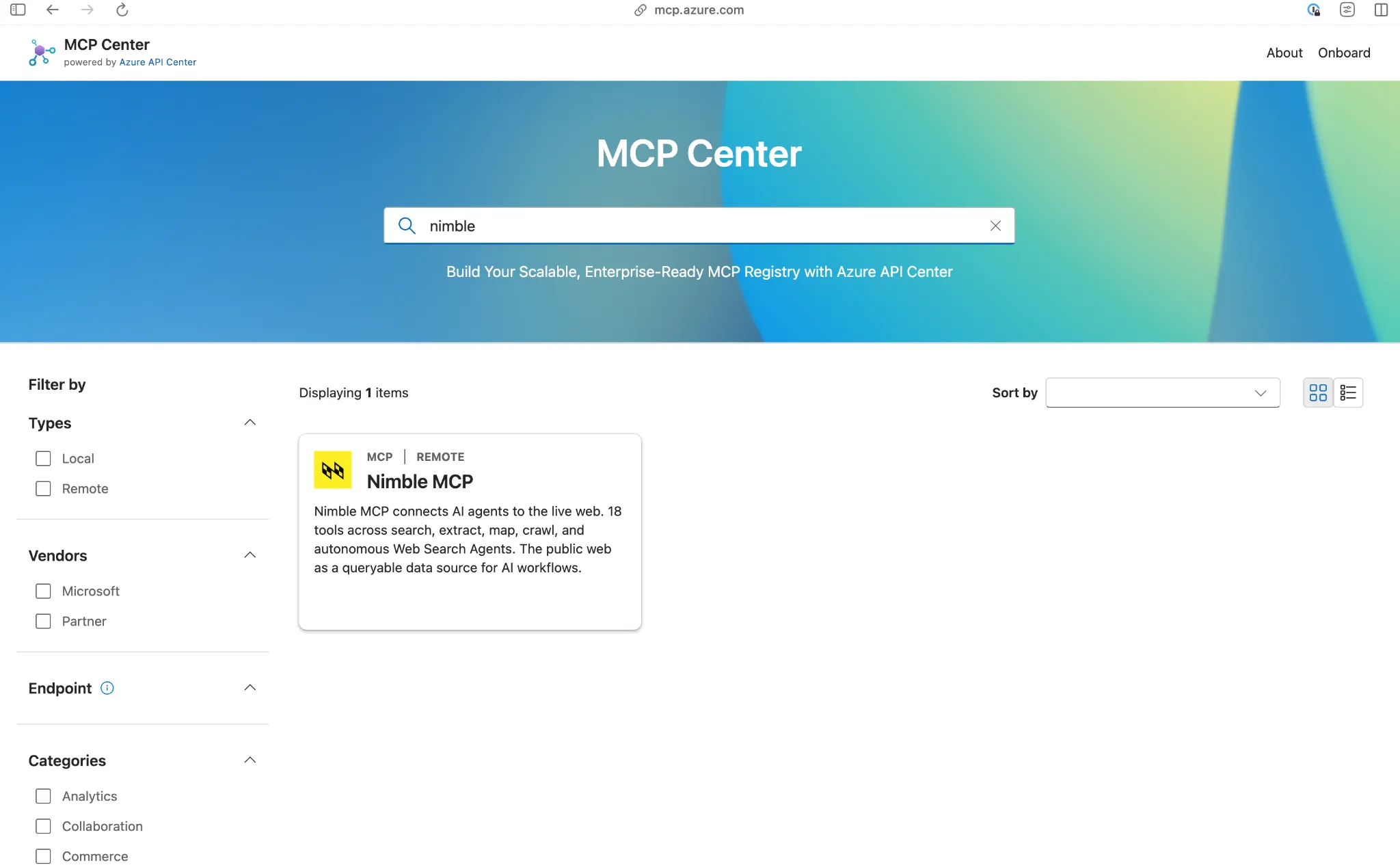
Nimble MCP is now listed on Azure MCP Center, Microsoft's curated showcase of MCP servers running on top of Azure API Center. Open the listing, click Install in VS Code, sign in once with OAuth, and Nimble's full web toolkit shows up inside GitHub Copilot. Search, extract, map, crawl, and Web Search Agents... no JSON config, no API key to manage, no rotation to schedule.The listing matters beyond the convenience. Azure MCP Center is curated, not self-serve.
Microsoft's curation team picks the partners that land on the shelf, which means Nimble shows up under Developer Tools, in the place Azure and VS Code teams already go when they're looking for what to plug into Copilot.
Below: what you get, how to install it, and the four moments in the dev loop where having live web access inside GitHub Copilot actually pays off.
What you get when you click Install
Three things happen when you hit Install in VS Code from the listing page.
The Nimble MCP server gets added to your Copilot settings automatically. No config file. No endpoint to memorize. If you ever need it directly, the streamable HTTP endpoint is at https://mcp.nimbleway.com/mcp.
You sign in with OAuth 2.1 in the browser, the same flow you use for any other VS Code identity provider. VS Code stores the token and refreshes it for you. There's no API key to leak in a .env, no service account to provision, no rotation cycle to schedule. If you've ever lost an afternoon to a CI run that broke because someone rotated an API key without telling the team, you'll appreciate this one.
The full Nimble web toolkit appears in Copilot Agent Mode under the tools icon. Search, extract, map, crawl, and Web Search Agents... the same surface the rest of our SDK exposes, available from the same chat panel where you write code.
That's the whole onboarding.
Why web tools belong inside the IDE
Most devs I talk to keep three browser tabs open while they code. Docs. Stack Overflow. Whatever live page they're trying to scrape into a fixture. GitHub Copilot can't see any of those tabs. That's the gap.
Pulling the web into Copilot itself changes the dev loop in small but compounding ways. Four moments where it actually pays off.
Research before you build
When you're scoping a feature, you want what the world is shipping right now, not what was canonical 18 months ago.
"I'm scoping a new checkout flow. Search recent articles and extract the top 5. Summarize the patterns, edge cases, and pitfalls before I write the spec."
Copilot picks Nimble Search, pulls the top results, runs Extract on the ones worth reading, and hands you back a structured summary in chat. It's the difference between writing a spec from memory and writing one grounded in the current state of the field. The same prompt shape works for "what are the recent breaking changes in [framework]" or "what are 5 alternatives to [library] and how do they compare."
Plan against current docs
Library docs change faster than training data. The version Copilot was trained on isn't the version you're calling.
"What changed in LangGraph's streaming API since v0.2? Pull the current docs and update graph.ts to match."
Copilot reads the live docs through Nimble, surfaces the breaking changes in a diff-friendly format, and edits the file. You skip the "Copilot wrote it, build broke, I read the docs, I fixed it, Copilot rewrote it" loop that costs everyone half a morning. Works the same for OpenAPI specs, framework migration guides, and any docs page that's gotten new headers since the model's cutoff.
Test with real data
Mocks drift. Hand-rolled fixtures go stale. The production page changes its DOM and your tests stay green for a week before anyone notices.
"Extract these 10 product URLs as clean JSON, save them to fixtures/products.json for the integration tests."
Nimble Extract turns each page into structured data. Copilot drops the file in place and writes the test scaffolding around it. When the source page changes, you rerun the same prompt and the fixtures regenerate. No manual scraping pipeline. No hand-curated JSON growing crusty in git.
Build agents that need the web
This one's the dogfood case. If the agent you're shipping calls a web tool in production, debug it inside Copilot first.
"I'm building a research agent in src/agent.ts. Use Nimble search and extract live so I can see the real shape of responses, then wire the same MCP into the agent's tool list."
Same MCP. Same scopes. Same OAuth flow. What works in your IDE is what your shipped agent runs against. No simulator-to-prod drift, no separate auth path, no "works in my chat, fails in deployment" debugging session at 11pm.
A note for the Azure folks
If your org runs its own Azure API Center, Nimble MCP shows up there too. Every API Center inherits the same partner servers Microsoft curates on the public showcase. You can expose Nimble to your developers alongside whatever private MCPs you've built and route it through Azure API Management's AI Gateway for centralized auth, rate limiting, and audit logs. Same listing. Your governance.
Try it
Open mcp.azure.com/detail/nimble-mcp. Click Install in VS Code. Sign in. Open Copilot Chat in Agent Mode. Ask it to search for something you'd otherwise alt-tab over to look up.
The first prompt that pulls a live page into your IDE without you leaving the editor is the moment. Most of the patterns above start to feel obvious the day after.
We didn't build this to live in a side panel. The whole point is that the web shows up where the code is.
FAQ
Answers to frequently asked questions
%20(1).webp)
.webp)

.webp)
.webp)
.webp)