









Introducing Jobs: Continuously Stream Web Data on a Schedule



Charlie Klein
.png)
Introducing Jobs: Continuously Stream Web Data on a Schedule
Charlie Klein


Most popular articles


Get structured, reliable data for your stack.
Introducing Agent Jobs: Continuously Stream Web Data on a Schedule
Jobs provide our customers with a simple way to continuously stream web data into their data stores.
Using Jobs, Nimble customers can easily run Web Search Agents, which are pre-built scraping templates that do the heavy lifting of web data extraction for you. Instead of writing and maintaining your own scraper — handling JavaScript rendering, anti-bot detection, rate limits, and constantly changing page structures — you point an agent at a site, hand it an input, and get back clean, structured data. Agents exist for Amazon, Google, TikTok, Zillow, and hundreds of other sources.
Until now, you could run Web Search Agents via API to hook Nimble into your event-driven architecture. With Jobs, you can also run them on a defined schedule, from intraday to monthly.
What Jobs Can Do
Jobs turns any Web Search Agent into a managed, repeatable workload — no orchestration code required. You define the job once, and Nimble handles everything else: fanning out runs across your full input set, managing concurrency and retries, aggregating results, and keeping data fresh on whatever cadence your use case demands.
How It Works
A Job binds together four things:
- Agent — the Web Search Agent to run
- Input Set — the list of inputs the agent should run against (one agent invocation per row)
- Destination — where the results should be delivered
- Trigger — when the job should execute
Once configured, each execution of the job is called a Run. A run reads every row from your input set and dispatches one agent invocation per row in parallel. Nimble manages concurrency, retries, anti-bot handling, and result aggregation automatically — you never touch a queue or worker pool.
Inputs
Input sets define what the agent runs against. Jobs accept inputs in three formats: CSV or Parquet file upload (each row becomes one agent invocation, column names must match the agent's input parameters), or a JSON array pasted directly into the UI. Inputs also include the data destination (downloaded to our platform for now, but will include AWS, Snowflake, Databricks, Microsoft, and other platforms soon).
Input rows can also include shared parameters — country, locale, tag, parse — to control localization or tag rows for downstream filtering.
Scheduling
Jobs support two trigger modes. Manual Trigger Only runs the job only when you click Run — useful for one-off backfills or runs gated on an upstream event. Scheduled runs the job automatically on a recurring cadence:
- Daily, weekly, or monthly (anchored to job creation time)
- Daily at a specific time (HH:MM, UTC)
- Custom cron expression for fine-grained control (e.g., every 6 hours, every Monday at 9am)
Manually triggered runs are always allowed on scheduled jobs — pressing Run kicks off an extra execution without affecting the schedule.
Results Delivery
When each run completes, Nimble assembles all per-row results into a single downloadable file. Output is available in JSON, CSV, or Parquet. You can optionally include the original input fields alongside each result row, making it trivial to join results back to your input set without relying on row order.
Currently, results are stored on Nimble and available for download directly from the run page. Direct streaming to S3 storage and other data platforms are coming soon — enabling results to land automatically in your data lake or warehouse as soon as each run completes.
Monitoring
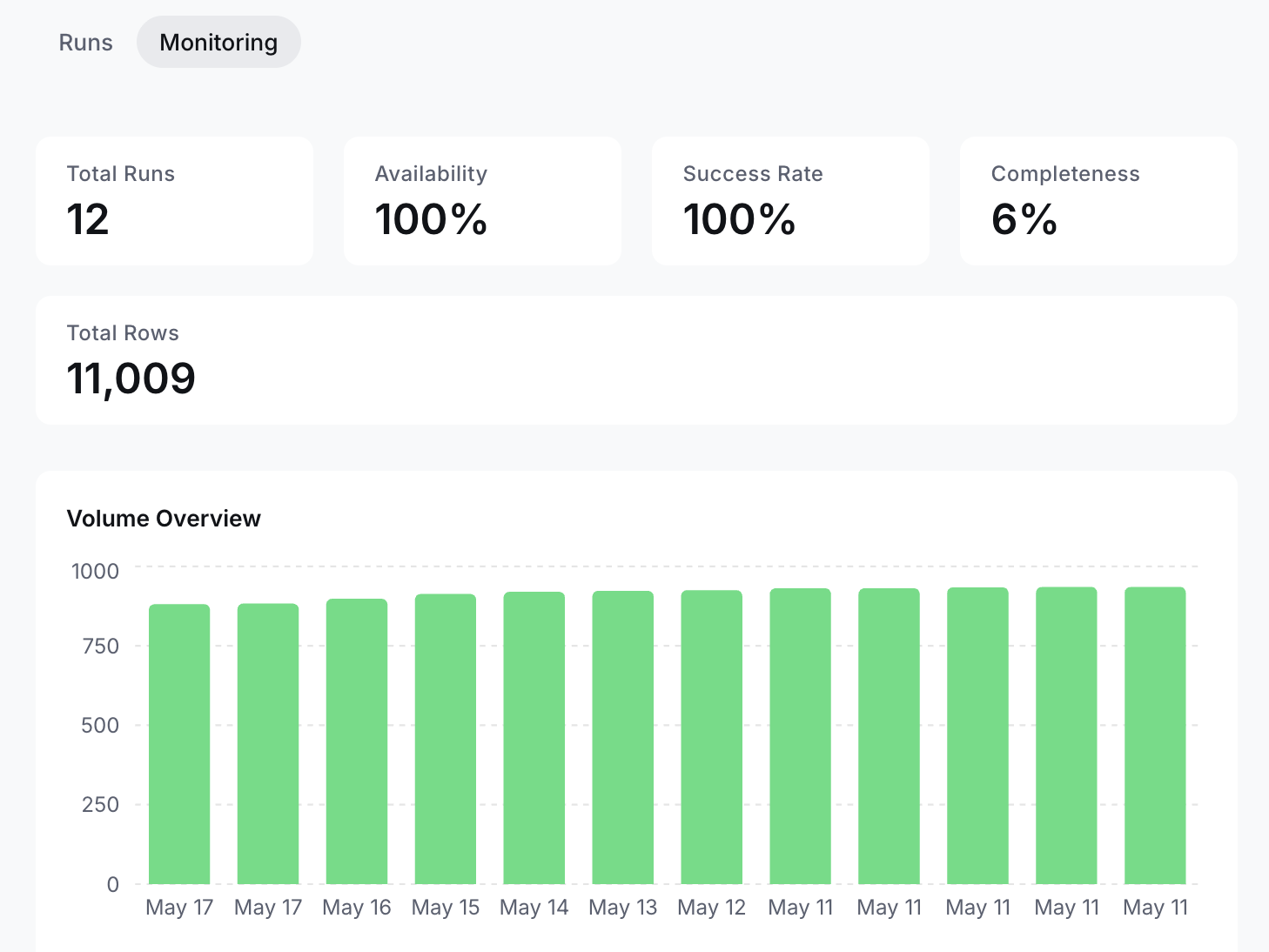
Every job has a dedicated detail page with two tabs. The Runs tab shows a reverse-chronological history of every execution, with status, start/end times, success rate, and a direct download link for each run's result file. The Monitoring tab surfaces aggregate health metrics across all runs:
- Total Runs and Availability (percentage of scheduled runs that completed)
- Success Rate (percentage of input rows that produced a successful result)
- Completeness (percentage of expected output fields populated — an early-warning signal when a target site quietly changes its structure)
- Total Rows and a volume chart showing rows processed per run over time
Example: Tracking Amazon Search Results with a Job
To make this concrete, here's how to set up a job using the Amazon Search Web Search Agent — a pre-built agent that returns product listings for a given search term on Amazon, including titles, prices, ratings, review counts, and sponsored status.
Imagine you're monitoring search results for a set of competitive keywords — say, 'wireless headphones,' 'noise cancelling earbuds,' and 'bluetooth speaker' — and you want a fresh snapshot of what's showing up every day.
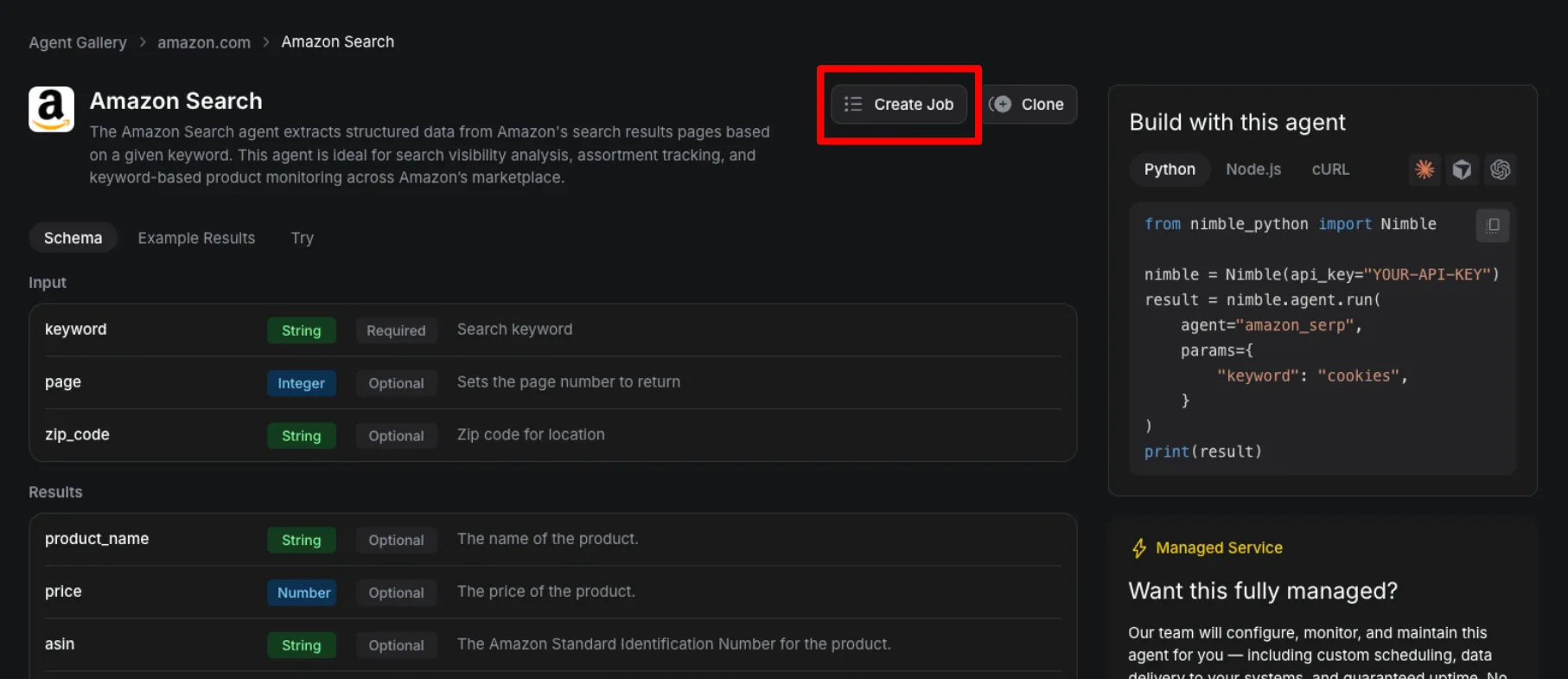
Step 1: Select your desired Web Search Agent and hit “Create Job”
In the Gallery, we’ll select the Amazon Search agent. This agent accepts a keyword input parameter and returns structured product listing data for that search term.
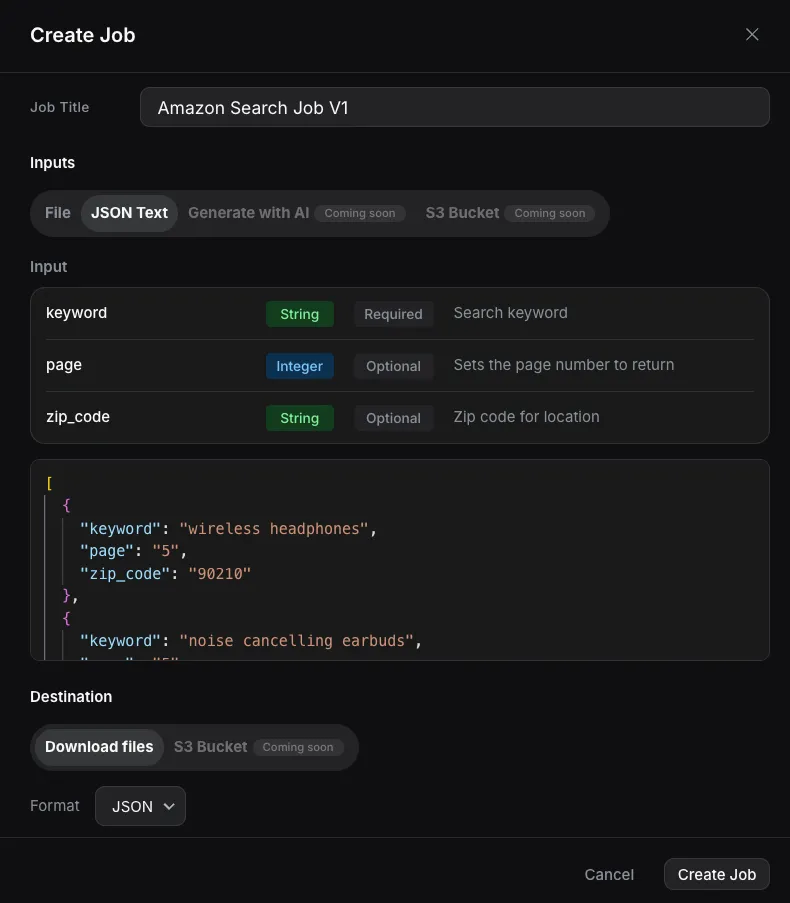
Step 2: Give your job a name and add search inputs
To enter your inputs, you can either add them via JSON or a CSV/Parquet file.
From there, you can add your search terms, the number of amazon SERP pages you want to scrape, and the zip code.
Step 3: Set the destination and the schedule
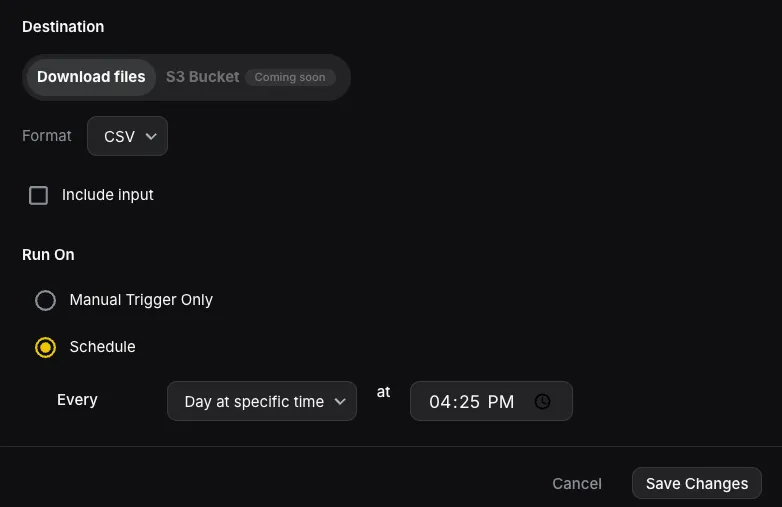
For now, results are stored on Nimble and downloadable from the run page. Each completed run produces a single file containing every successful agent result for that run. Soon, you’ll be able to stream your data to an S3 bucket.
Next, decide whether you want to run your job on a schedule or to run it manually. In the example below, I’ll run it every day at 4:25 PM. To run it manually, you can click the “Run” button in the jobs view (see next step).
Step 4: Start running your Agent Jobs
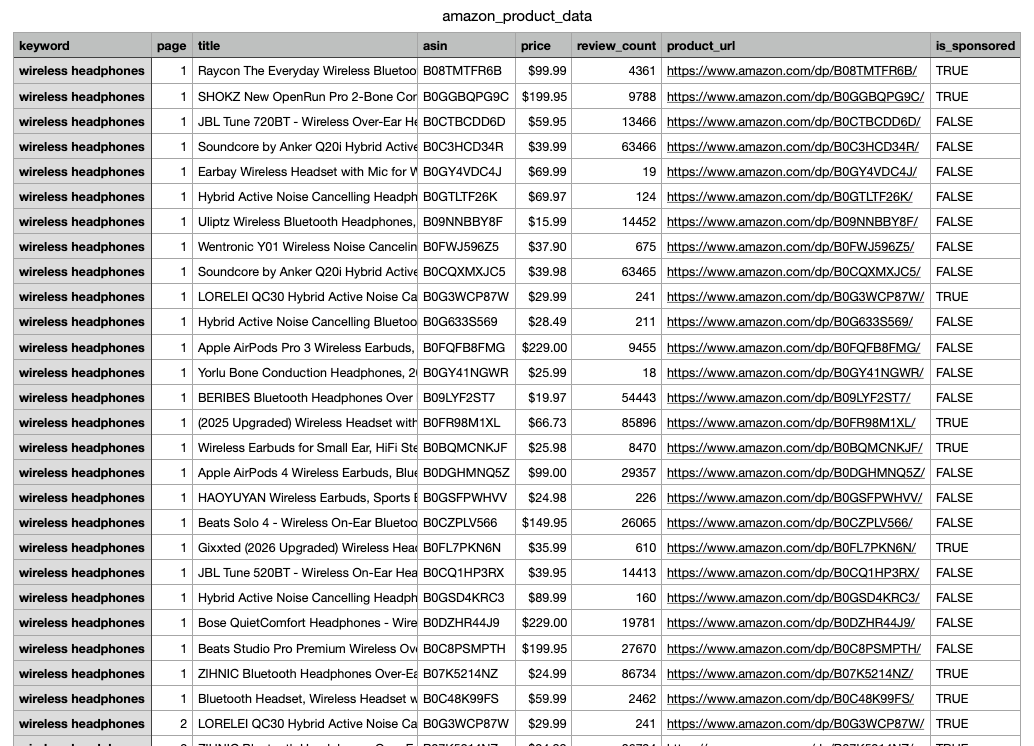
After creating your Job, Nimble will automatically trigger an agent run on a schedule. This is what we got after running the job in our example (see the full dataset here: https://docs.google.com/spreadsheets/d/1eFxOZsxqJDlcr9-W9N7mU1Gmt9-QkeHJ87jiiv91vS0/edit?gid=0#gid=0 )
After each job runs, you can view the volume, success rates, and other helpful metrics within the UI.
Simplify web data collection at scale
The value of web data is almost always a function of freshness and scale. A one-time price snapshot is a curiosity; daily price snapshots across your full catalog are a competitive advantage. A single SERP check tells you where you rank today; hourly SERP monitoring across thousands of keywords tells you how your visibility is trending.
Until now, getting there required engineering time — building and maintaining the orchestration layer to run agents repeatedly, at volume, reliably. Agent Jobs eliminates that entirely. The infrastructure is Nimble's problem. Your team focuses on what the data means, not how to collect it.
Jobs are designed for the workloads that matter most in production: recurring, large-scale, hands-off data collection. Whether you're running nightly price refreshes across 100,000 SKUs, tracking SERP rankings for a competitive keyword set, or sweeping competitor pages every week for catalog changes, Jobs gives you a stable, monitored pipeline — configured once, running indefinitely.
Agent Jobs is available now. Head to online.nimbleway.com/jobs to create your first job, or browse the Agent Gallery to explore the pre-built agents you can run at scale.
FAQ
Answers to frequently asked questions





.webp)
.webp)
.avif)
.webp)
