









How to Track OpenAI, Gemini, and Grok Pricing Automatically


Tom Shaked
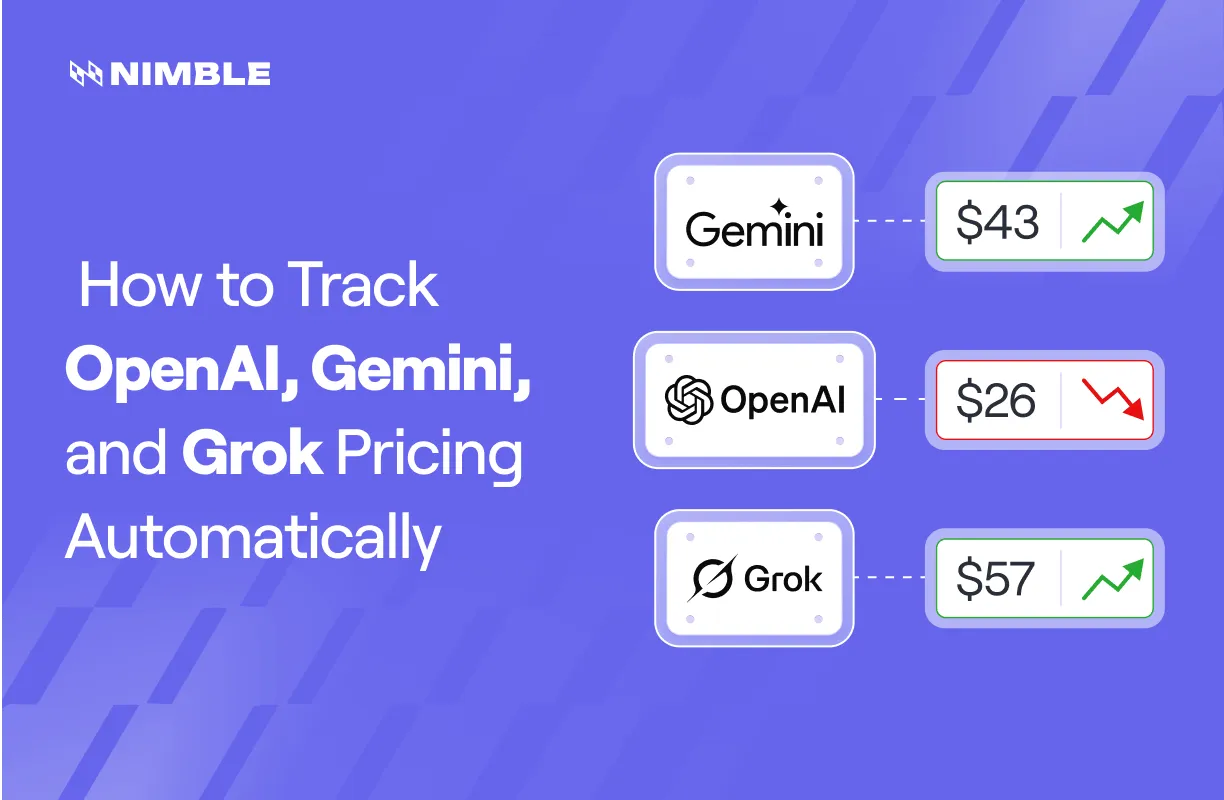
How to Track OpenAI, Gemini, and Grok Pricing Automatically
Tom Shaked


Most popular articles

Get structured, reliable data for your stack.
LLM pricing changes constantly, there's no official feed, and most teams find out the hard way. One day your cost estimates are accurate. The next day OpenAI adjusted their output token rates and nobody told you. By the time you realize it, three weeks of deployments have blown your budget.
The Problem
Pricing changes happen more often than you'd expect. OpenAI cut GPT-4o input pricing in half in May 2024 — from $5 to $2.50 per million tokens — and then cut it again later in the year. Google has repriced Gemini tiers multiple times as the model lineup expanded. xAI launched Grok with one pricing structure and revised it as the API matured. None of these changes came with a notification. If you were routing traffic based on cost comparisons, your routing logic was wrong before you knew it needed updating.
Here's the problem: there's no webhook. No official changelog. No structured API endpoint for pricing data. The pricing page on each provider's website is the source of truth, and it changes without announcement. Most teams find out from a Hacker News comment, a Slack message from someone who happened to check, or worse, from a surprised accounting email at the end of the month.
What to Monitor
Start with the pages that actually matter:
OpenAI — openai.com/api/pricing Track input/output price per million tokens for GPT-4o, o1, and o3. Watch the context window limits and which models are deprecated.
Google — ai.google.dev/gemini-api/docs/pricing Gemini pricing varies by tier and model. Track per-million-token rates and free tier limits (they change).
X — x.ai/api Grok model pricing. Smaller provider, but if you're using Grok in production, you need to know when rates shift.
Anthropic — anthropic.com/pricing Claude pricing by model and token tier. Input vs. output rates, batch processing discounts.
For each page, the data that matters: input price per million tokens, output price per million tokens, context window size, and any free tier limits or rate restrictions.
Building It with Python
Let's build this step by step. Each step shows you the problem, then the solution.
Step 1: Fetch the Page
Start simple. Get the HTML.
import requests
from bs4 import BeautifulSoup

response = requests.get("https://openai.com/api/pricing", headers={"User-Agent": "Mozilla/5.0"})
soup = BeautifulSoup(response.text, "html.parser")
tables = soup.find_all("table")
print(tables)  # []
You get an empty list. The pricing tables aren't in the static HTML. OpenAI renders them with JavaScript after the page loads. You need a browser.
Step 2: Add JavaScript Rendering
Use Playwright to actually render the page.
from playwright.sync_api import sync_playwright

with sync_playwright() as p:
    browser = p.chromium.launch(headless=True)
    page = browser.new_page()
    page.goto("https://openai.com/api/pricing")
    page.wait_for_load_state("networkidle")
    content = page.content()
    browser.close()
print(content[:500])
This works sometimes. It also doesn't work sometimes. Cloudflare blocks most headless browsers on openai.com. You'll get through occasionally, but not reliably.
Step 3: Add Stealth
Make the browser look more like a real user.
from playwright.sync_api import sync_playwright
from playwright_stealth import stealth_sync

with sync_playwright() as p:
    browser = p.chromium.launch(headless=True)
    page = browser.new_page()
    stealth_sync(page)
    page.goto("https://openai.com/api/pricing")
    page.wait_for_load_state("networkidle")
    content = page.content()
    browser.close()
This is more reliable but still not consistent. Cloudflare's detection rules evolve. What works this week may not work next week. You're in an arms race with their bot detection.
Step 4: Store a Snapshot and Detect Changes
Assume you can fetch the page. Now track changes over time.
import hashlib
import json
from datetime import datetime

def snapshot_hash(content):
    return hashlib.sha256(content.encode()).hexdigest()

def save_snapshot(url, content):
    record = {
        "url": url,
        "timestamp": datetime.now().isoformat(),
        "hash": snapshot_hash(content),
        "content": content
    }
    filename = f"snapshot_{datetime.now().strftime('%Y%m%d_%H%M%S')}.json"
    with open(filename, "w") as f:
        json.dump(record, f)
    return record

def check_for_changes(url, current_content, previous_hash):
    current_hash = snapshot_hash(current_content)
    if current_hash != previous_hash:
        print(f"[CHANGE DETECTED] {url}")
        return True
    return False
This hashes the content and compares it to the previous hash. If they differ, you've got a change. Store both the hash and the full content so you can diff it later.
Step 5: Send an Alert
When you detect a change, tell someone.
import smtplib
from email.mime.text import MIMEText

def send_alert(url, subject="Pricing page changed"):
    msg = MIMEText(f"Change detected on: {url}")
    msg["Subject"] = subject
    msg["From"] = "monitor@yourdomain.com"
    msg["To"] = "team@yourdomain.com"
    with smtplib.SMTP("smtp.yourdomain.com", 587) as server:
        server.sendmail(msg["From"], [msg["To"]], msg.as_string())
Or use a Slack webhook instead:
import requests

def send_slack_alert(url, webhook_url):
    payload = {
        "text": f"Pricing change detected on: {url}"
    }
    requests.post(webhook_url, json=payload)
This is the core loop. Fetch, hash, compare, alert.
Where It Gets Hard to Maintain
Building it is one thing. Running it for six months is another.
Cloudflare detection on OpenAI updates periodically. A script that worked last month stops working today because they changed their fingerprinting rules. You get an alert that nothing has changed, but actually the page fetch is now silently failing. You don't know which.
Each provider page has a different structure, different bot detection, and different rendering behavior. OpenAI uses React. Google's page is mostly static but the pricing tier logic is JavaScript. X's pricing is embedded in a different URL structure. You can't write one extractor and apply it to all four. You need custom parsing for each.
Scheduling the script reliably is its own problem. Cron jobs fail silently. If the script crashes, the cron job just exits and you don't know about it. You need monitoring on top of your monitoring. You need to know that the fetch itself succeeded before you trust the "no changes" result.
Handling failures well is critical. What happens when a page is temporarily down? If you're not careful, you send a false alarm that "pricing changed" when really the page was just unreachable for 30 seconds. Now your team doesn't trust the alerts anymore.
Proxy rotation adds cost and another failure point. Cloudflare sees the same IP fetching every hour. Add proxies to reduce detection risk, but now you've got rotating proxy management, proxy failure handling, and an additional expense.
Someone has to maintain all of this when it breaks. When Cloudflare changes their detection method next month, you'll be the one debugging why the script stopped working. When Google restructures their pricing page, you'll be the one rewriting the parser.
Making It Production-Ready
There are two ways forward. Either you own all of the above, or you use a service that does.
Single Page Extraction
Use Nimble to fetch and render a single pricing page.
from nimble_python import Nimble

nimble = Nimble(api_key="YOUR_API_KEY")

result = nimble.extract(
    url="https://openai.com/api/pricing",
    render=True,
    driver="vx10",
    formats=["markdown"]
)

print(result.data.markdown)
The HTML is rendered, Cloudflare is handled, and you get back clean markdown of the pricing table. No bot detection arms race, no stealth browser configuration, no failed requests.
Scaling to All Providers with Async
Monitor all four pricing pages in parallel without blocking.
from nimble_python import Nimble
import time
import hashlib
from datetime import datetime

nimble = Nimble(api_key="YOUR_API_KEY")

urls = [
    "https://openai.com/api/pricing",
    "https://ai.google.dev/gemini-api/docs/pricing",
    "https://x.ai/api",
    "https://www.anthropic.com/pricing"
]

# Submit all extractions at once
tasks = []
for url in urls:
    response = nimble.extract_async(
        url=url,
        render=True,
        driver="vx10",
        formats=["markdown"]
    )
    tasks.append({"url": url, "task_id": response.task_id})
    print(f"Submitted: {url} → {response.task_id}")

# Poll for results
previous_hashes = {}  # load from storage in practice

for task in tasks:
    while True:
        status = nimble.tasks.get(task["task_id"])
        if status.task.state == "success":
            result = nimble.tasks.results(task["task_id"])
            content = result.data.markdown
            current_hash = hashlib.sha256(content.encode()).hexdigest()

            if task["url"] in previous_hashes and previous_hashes[task["url"]] != current_hash:
                print(f"[{datetime.now()}] CHANGE DETECTED: {task['url']}")
                # trigger alert

            previous_hashes[task["url"]] = current_hash
            break
        elif status.task.state == "failed":
            print(f"Failed: {task['url']}")
            break
        time.sleep(2)
Submit all four URLs to Nimble at once, then poll for results. When they come back, compare hashes and alert on changes. For scheduled runs, you can use Nimble's Managed Service instead. Set it up once, and Nimble executes the extraction on your schedule and delivers results to your webhook. No cron job to maintain, no server to keep alive.
Getting Started with Nimble
Install the Python client:
pip install nimble_pythonAuthenticate and make your first extraction:
from nimble_python import Nimble

nimble = Nimble(api_key="YOUR_API_KEY")

result = nimble.extract(
    url="https://openai.com/api/pricing",
    render=True,
    driver="vx10"
)

print(result.data.markdown)
Extraction starts at $0.90 per 1,000 URLs. Free trial: 5,000 pages.
Sign up at https://app.nimbleway.com/signup
Continue Exploring
Pricing is one piece of the picture. These posts cover other LLM data worth tracking and how to collect it.
- The Complete Guide to LLM Scraping — The full picture: scraping provider documentation pages and querying LLM interfaces, with DIY approaches for each.
- How to Extract ChatGPT Responses as Structured Data with Python — Collect answers, source citations, and links from ChatGPT's web interface programmatically.
- Scraping Google AI Mode for LLM Overviews and Sources — Pull Google's AI-generated overviews and their cited sources using Python.
- Scraping Grok: Real-Time Answers, Images, and Web Search Results — Extract structured responses from Grok, including answer HTML and image data.
- Scraping Gemini's Web Search Answers with Python — Collect Gemini's grounded answers with full source metadata and position data.
- How to Monitor AI Model Deprecations in Real-Time — Set up alerts for model deprecation notices so you're not caught off guard when a model gets turned off.
FAQ
Answers to frequently asked questions

.webp)
.webp)
.webp)
.avif)